
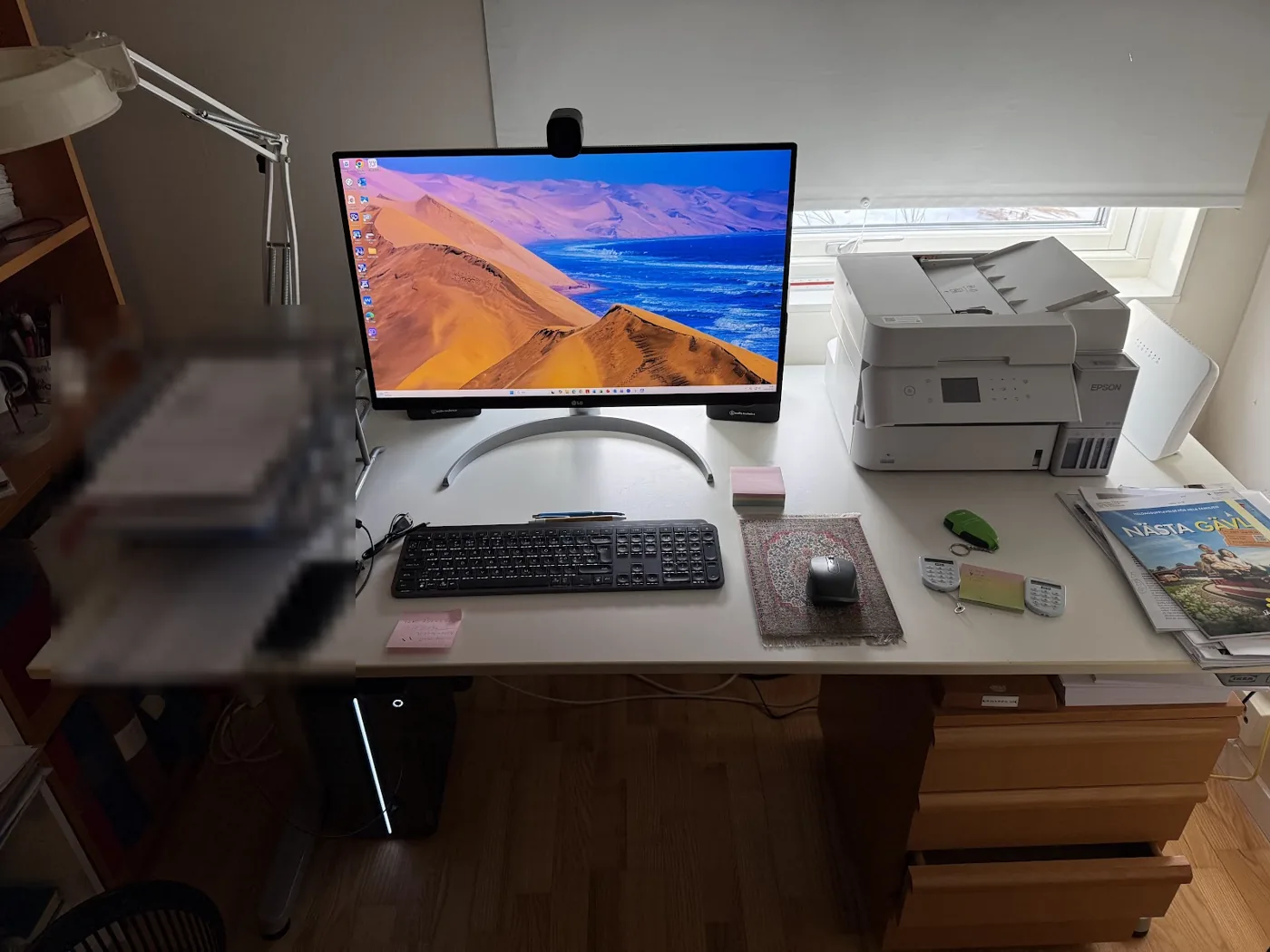
Do you work from home one or more days a week? Then we build a home office with the right screens, docking, Wi-Fi, printer and automatic backup, so that you work just as efficiently at home as at the office.
Many home offices, however, have grown up gradually. It becomes, for example, a laptop on the kitchen table, an old screen and a Wi-Fi network that drops during video meetings. Even so, the work makes the same demands as at the office, both on security and on the working environment. In addition, client data and agreements often sit on the computer at home. We have set up workplaces for businesses and sole traders for more than 30 years. For this reason, we know what makes the biggest difference, and what only costs money.
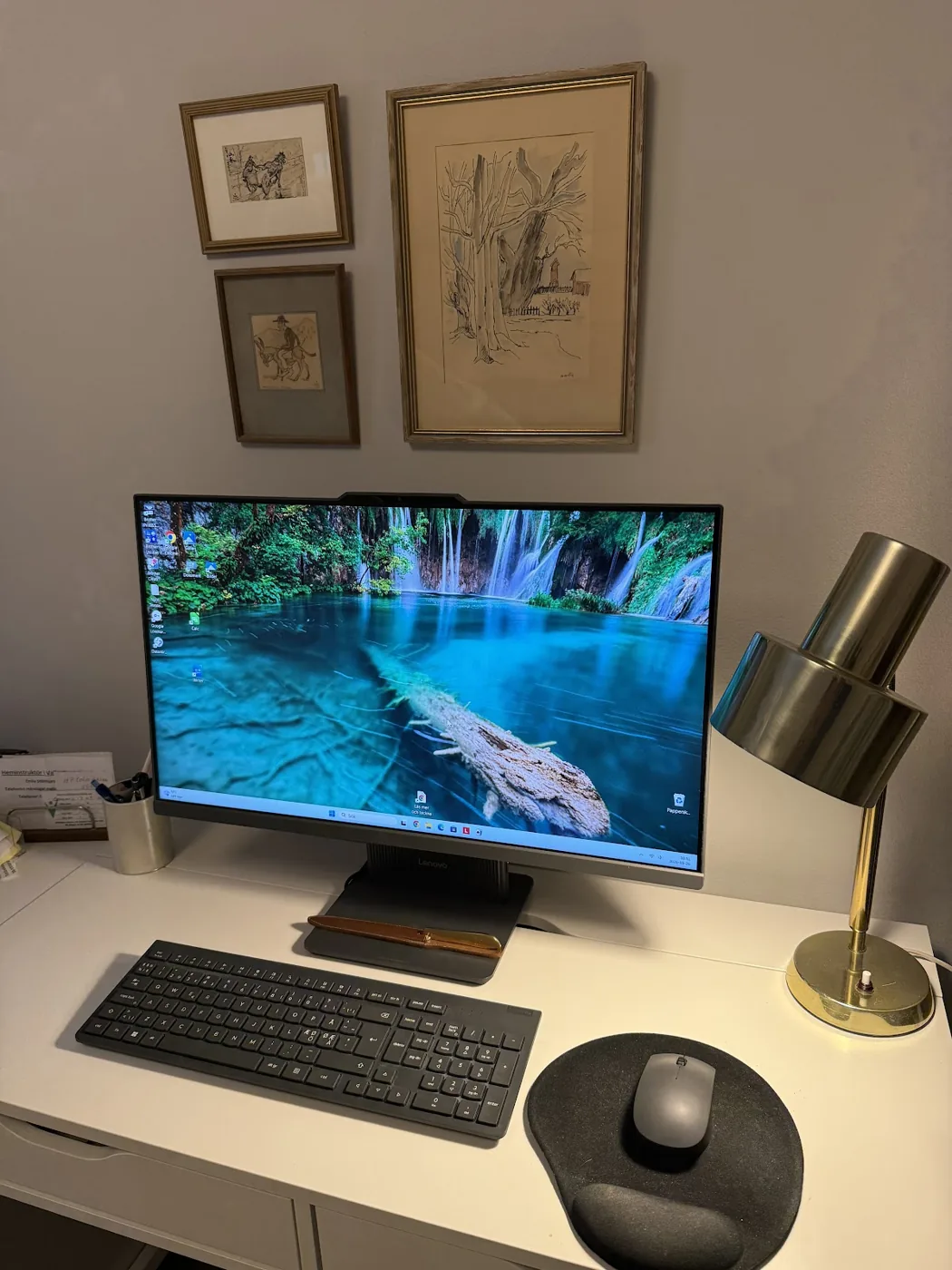
Screens and docking in the home office
First, we choose the screen according to the work. For spreadsheets and documents, for example, a large high-resolution screen suits best, while a good webcam matters more for video meetings. Next, we connect the laptop with a docking station or a screen with USB-C. A single cable is then enough for picture, network and charging. Finally, we set the placement, scaling and brightness of the screens in Windows or macOS.
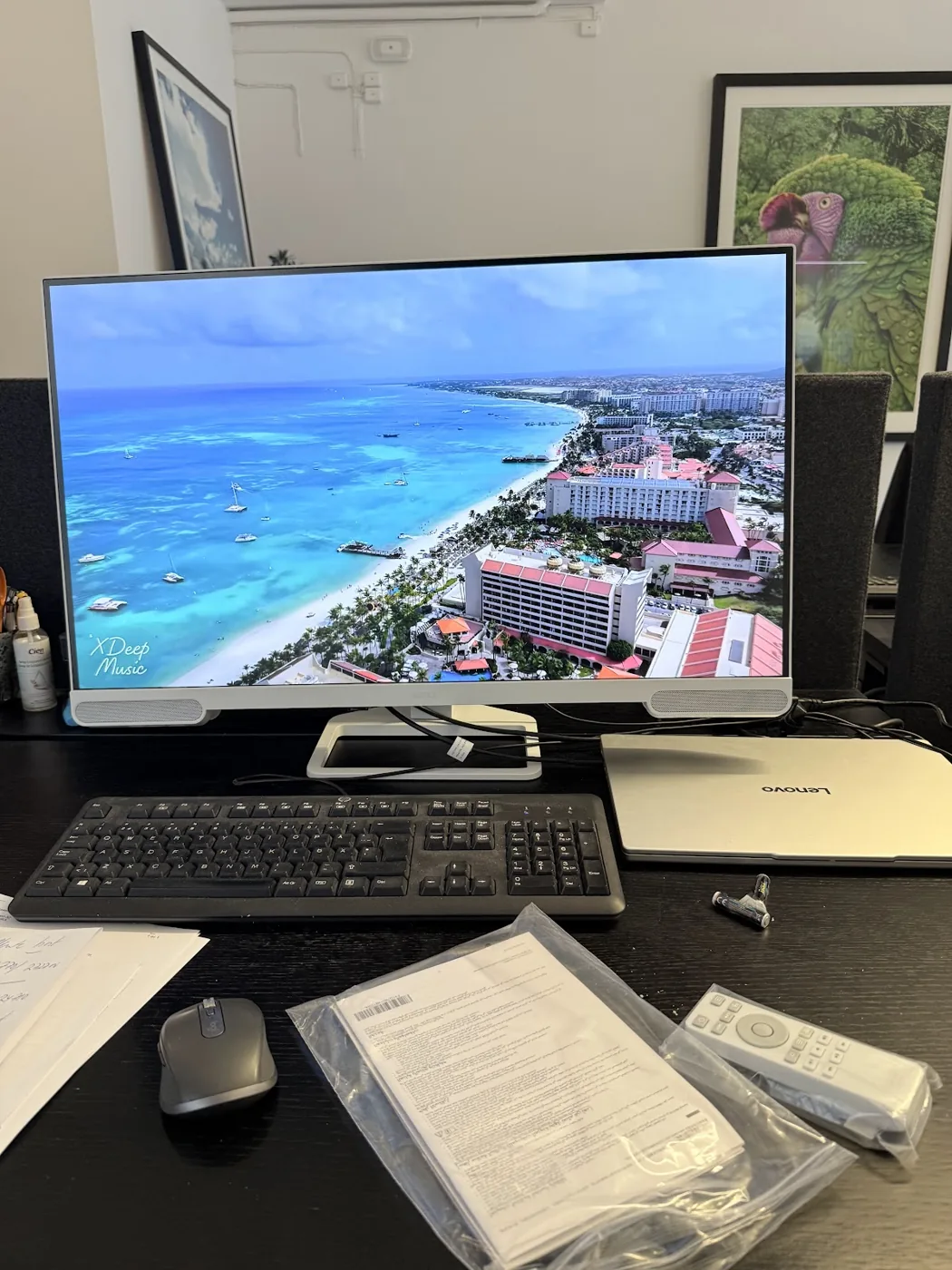
- Screen: at least 27 inches for documents and spreadsheets, preferably height-adjustable.
- Docking: one cable for the screen, network, charging and accessories.
- Webcam and headset: clearer sound and picture in Teams and Zoom.
- Keyboard and mouse: wireless, but with a stable connection.
Network and Wi-Fi for the home office
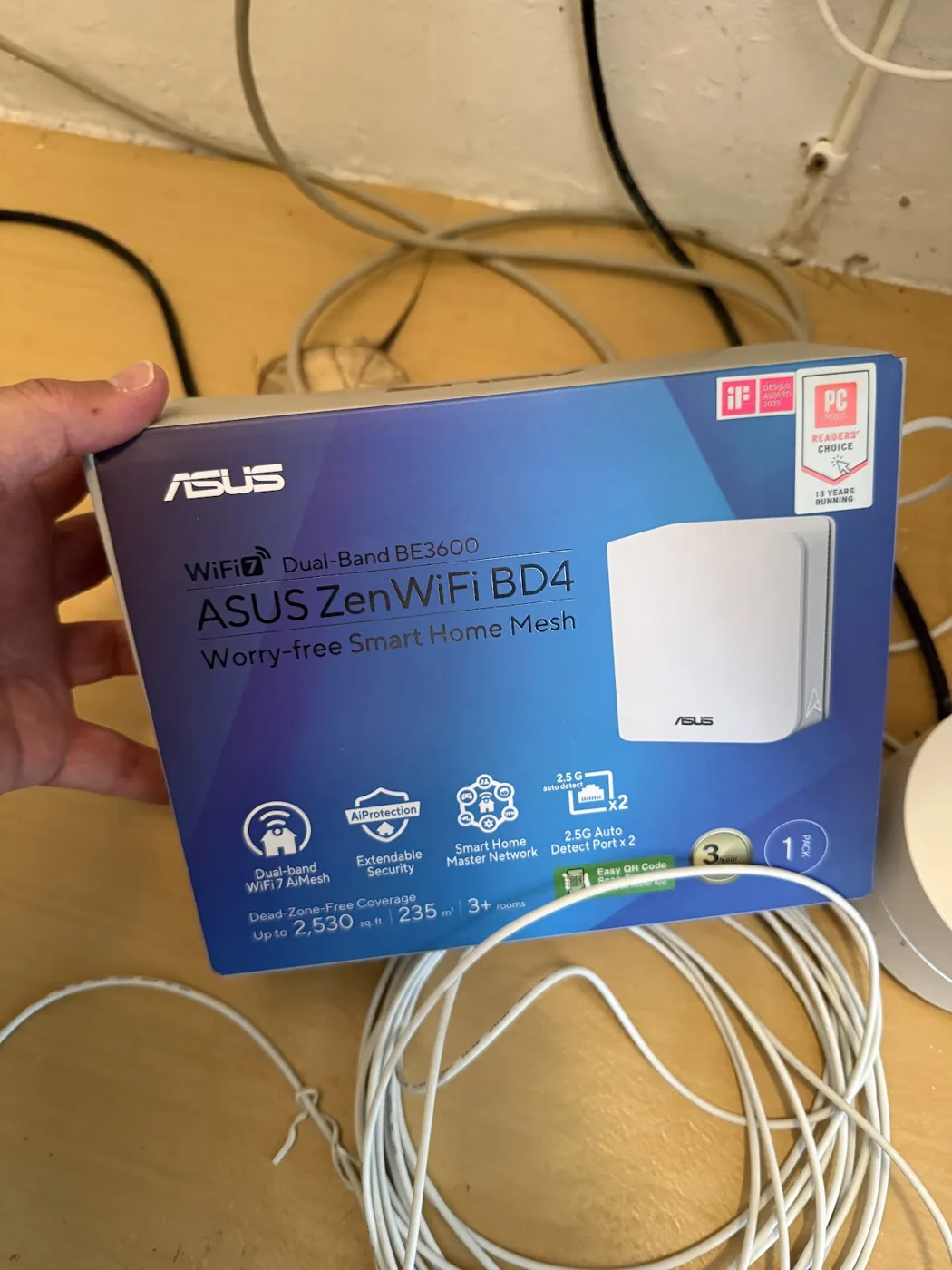
Wi-Fi that drops during video meetings is currently the most common complaint from home offices. That is why we connect the computer with a network cable whenever possible. Otherwise, we install a mesh system, which gives even coverage throughout the home. At the same time, we like to divide the network, so that the work computer does not share a network with the children’s games and smart gadgets. For bigger coverage problems, we also work together with Wi-Fi Problem.
Backup and security in the home office
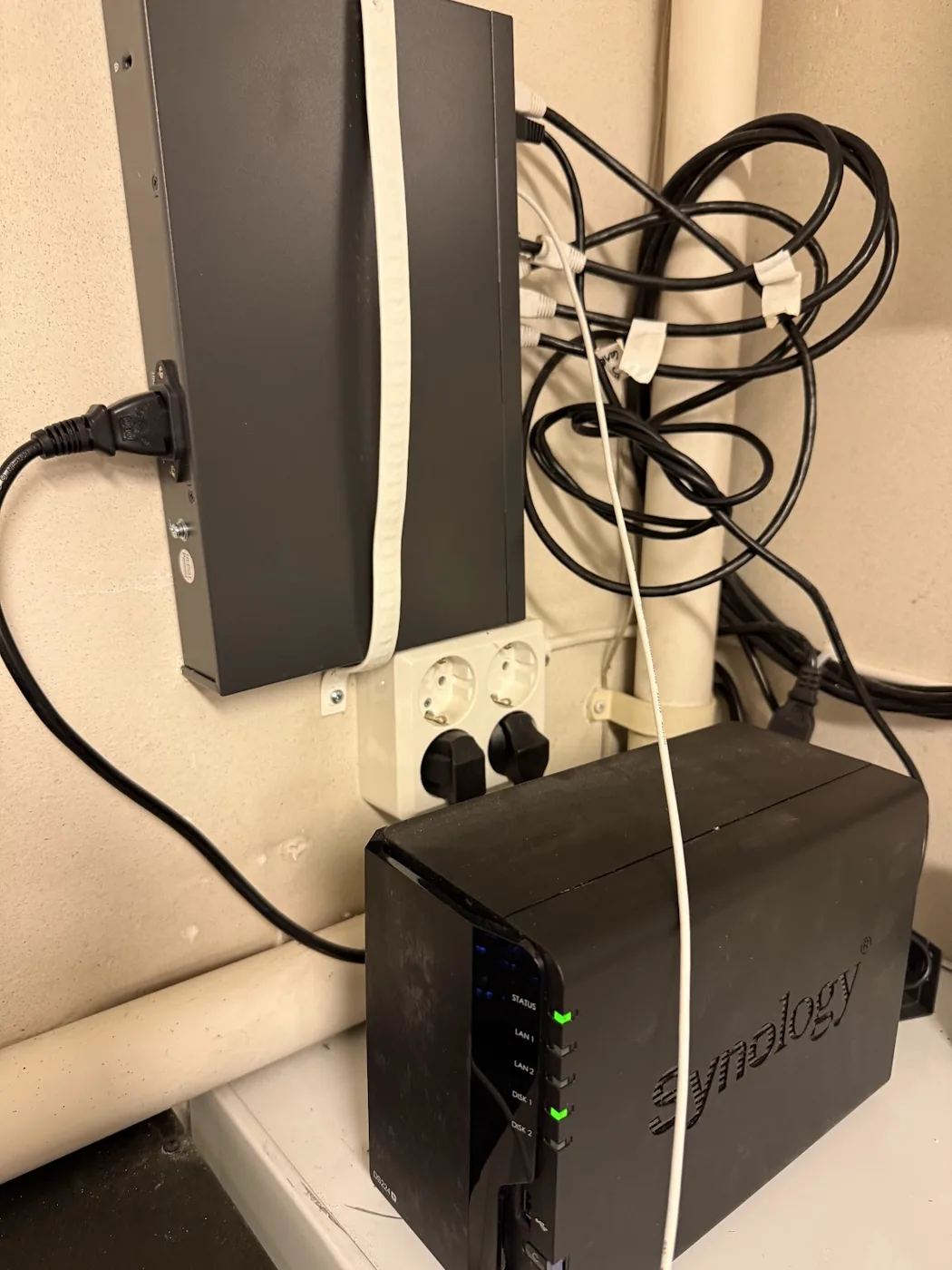
Work files should always exist in at least two places. We therefore set up automatic backups to OneDrive or iCloud, as well as to a network drive or an external disk. In this way, we follow the 3-2-1 rule: three copies, on two different media, with one of them outside the home. We also encrypt the disk and turn on two-step verification for email and cloud services. If you also need to connect to the office network, we install a secure VPN client.
See also the article on authenticator apps, which protect the accounts in the home office when someone gets hold of a password.
Printer and scanner at home
Many people still need to print agreements and scan receipts. We therefore install a printer that works from both the computer and the phone. At the same time, we set up scanning directly to a folder in the cloud, so that the receipts end up in the accounts. If the printer acts up, you can find more in the article on what to do when the printer is not working.
A home office for businesses and employees
For businesses, we also install the same solution for several employees. We connect the computers to Microsoft 365, and after that we manage updates and security remotely. When an employee leaves, we reset the computer and make sure that the work files stay with the company. See also the article on Microsoft 365 for small businesses.
Book help with your home office
We come to your home in the Stockholm area and build the workplace on site, but we can also buy the equipment for you. Prices start from €200 per hour excluding VAT, also for remote help. Dator Hjälp is part of Datorkirurgen AB.
Frequently asked questions about the home office
Screens, docking and equipment
- Which screen suits a home office best?
- Do I need a docking station?
- Can a screen charge the laptop through USB-C?
- How do I set up two screens in Windows?
- Which webcam suits Teams?
- Is a headset better than the computer’s microphone?
- How high should the screen be?
- Does docking work with a Mac?
- Can you mount monitor arms?
- Which keyboard suits long working days?
Network and security
- Why do video meetings lose the connection?
- Should I use a cable or Wi-Fi at home?
- What is a mesh system?
- Can the work computer have a network of its own?
- Do I need a VPN to work from home?
- How do I encrypt the disk on the work computer?
- What is the 3-2-1 rule for backups?
- Is OneDrive enough as a backup?
- What is a network drive?
- How do I protect client data in the home office?
Printers, businesses and price
- Which printer suits a home office?
- How do I scan receipts straight to the cloud?
- Can you set up home offices for several employees?
- Do you manage updates remotely?
- What happens to the computer when an employee leaves?
- What does help with a home office cost?
- Will you come to my home?
- Can you buy the equipment for us?
- How long does the installation take?
- How do I book help with my home office?